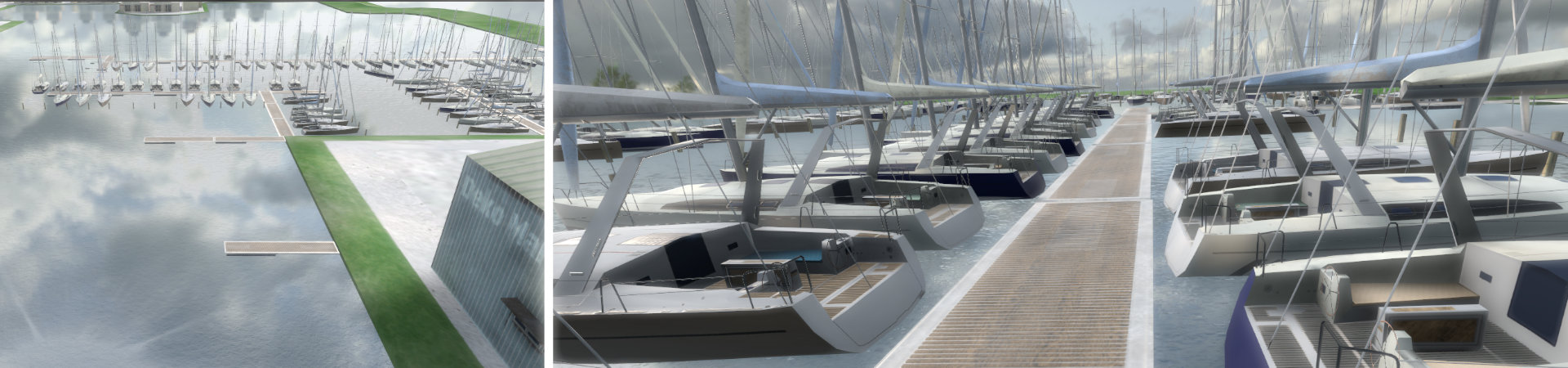
Just unboxed your simulator console?
Follow these steps to get you on board in less than 10 minutes.
1. Prepare your computer for VR
Download Required Software
On your PC, download and install these three items:
- VIVE Hub: The "bridge" between your headset and PC. Download from Vive.com.
- Steam: If you don't have it, install it from steampowered.com.
- SteamVR: Inside the Steam app, search for "SteamVR" in the Steam Store (it's free) and install it.
Connect the Headset using the VIVE Wired Streaming Kit cables: Follow this short tutorial.
Establishing the Connection
- Enable DP Mode in Headset: Put on the headset and turn it on.
- A prompt should appear; select VIVE Streaming (DP Mode).
- If it doesn't appear, navigate to Settings > Connectivity > Computer connection inside your headset and select your PC.
- Check Connection Status: In VIVE Hub (on your PC) , the USB icon will turn orange when successfully connected in DisplayPort mode.
2. Connect the console to you PC
Plug the enclosed USB-A Connector to both the PC and your steering console. The connector is on the bottom of the console at its back side underneath the thrust lever housing.
3. Download and install the simulator
Browse to https://ws.xrnaut.com and log in with the credentials you received with your console. Follow the installation instructions to download and install the simulator software.
4. Log-in, trigger co-location and start you first lesson
Launch the simulator using the start menu (the application name is: XRNAUT Yacht Simulator). At the very first start, you need to enter the simulator ID. This is enclosed in the documents you received with your console and also available at your SchoolPortal dashboard (for copy & paste). Click "OK" to store the ID. The simulator will show a login screen.
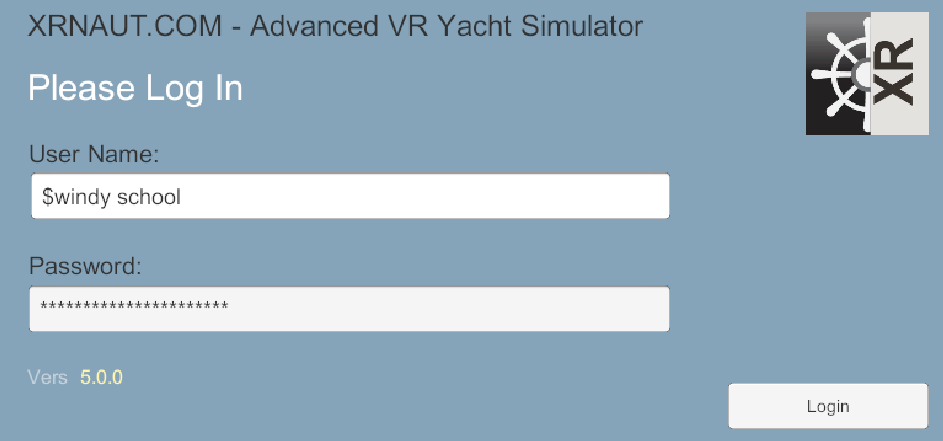
Enter the credentials you received with your console to log in. You will then enter the loader screen.
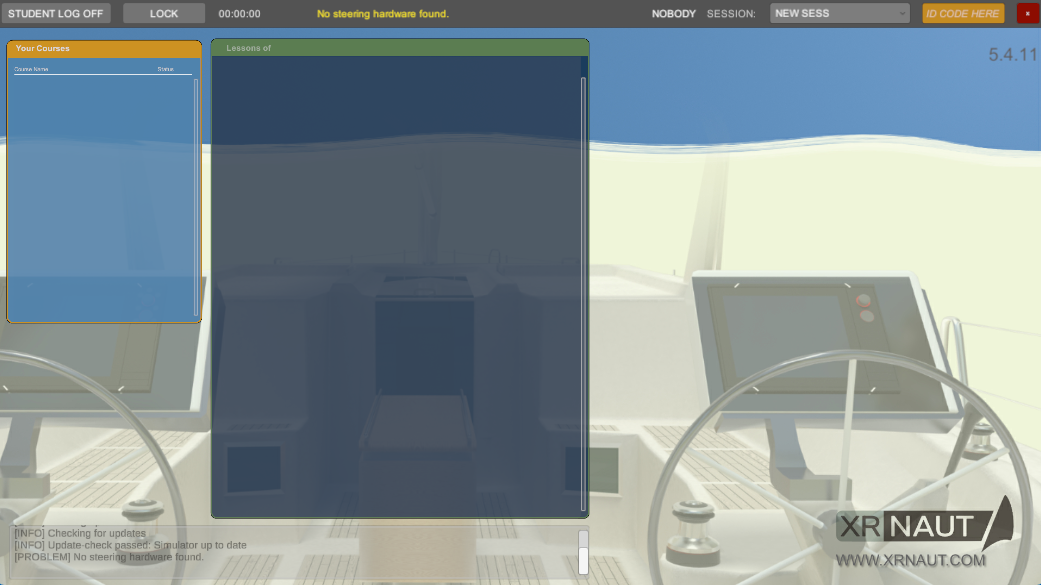
Now you can trigger the co-location by pressing the key "q" on you keyboards. Check that the console orientation and positioning in the headset machtes the one of the real console.
Now log in a student to get the lessons available for the student. To get you started quickly, a student with number 65 is already preconfigured in you company profile.

So you can just enter the number 65 into the orange input field in the top right corner of the loader screen.
Now you will see a list of courses and excercises.
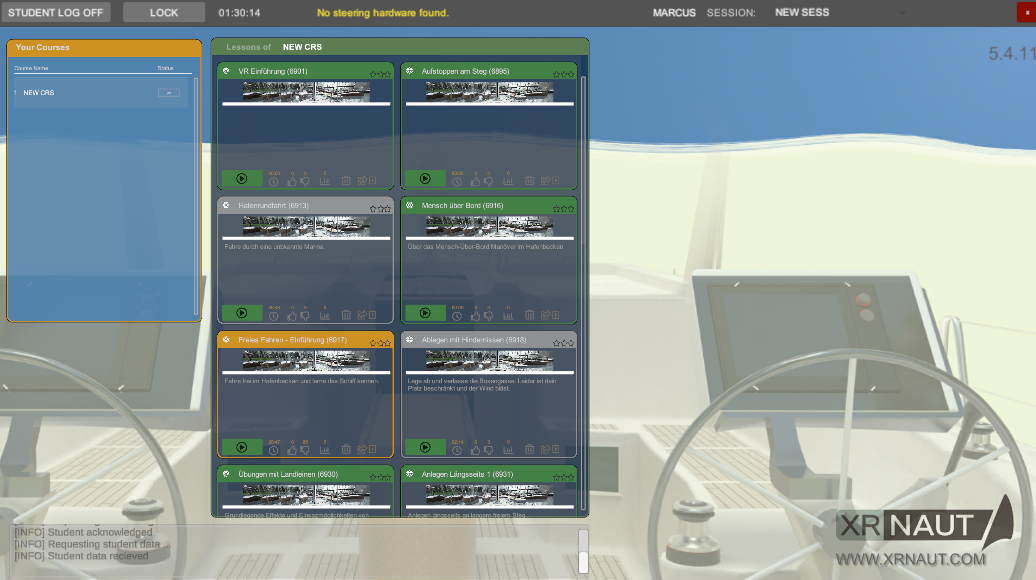
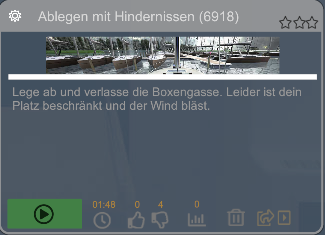
Use the "play button" on the lower left corner of each exercise panel to start it:
If the yacht is moored, use the morring buttons to remove the moorings and to start sailing.